Download the Sophos Connect client
- Sign in to the VPN portal - please contact vGRID Support if you do not have this URL
-
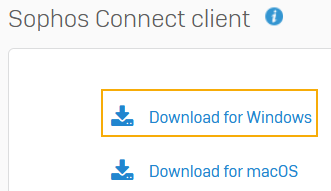
Under Sophos Connect client, click Download for Windows.
- Click the downloaded file to install the Sophos Connect client on your device.
Download the configuration file
- On the VPN portal, under VPN configuration, click "Download configuration for Windows, macOS, Linux" for one of the following options:
- Use with Sophos Connect and OpenVPN Connect v2 clients: Supports the Sophos Connect client and OpenVPN Connect 2.0 clients.
-
You'll download the
.ovpnconfiguration file.
- If you are using a third party client that supports Supports the OpenVPN Connect 3.0, then download the second option - "Use with OpenVPN Connect v3 clients"
Note: You can see the SSL VPN configuration files for download only if your administrator has configured a remote access SSL VPN policy for you.
Install the client on your Window PC
-
Navigate to the downloaded file and double-click to install it.
- this will require your account to have installation rights. if you do not, you should contact your IT Department.
-
Open the client
- you can do this by either clicking on the icon in your taskbar OR double clicking the desktop shortcut.
Import the configuration file to the client
-
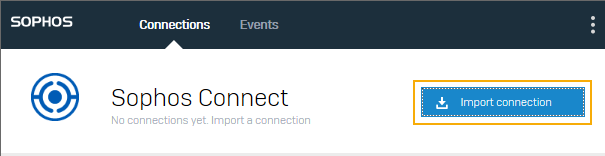
Click the Sophos Connect client on your endpoint and click Import connection.
-
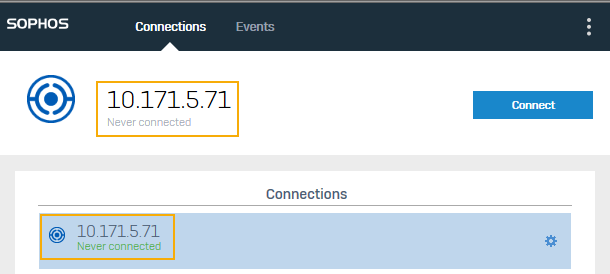
Select the
.ovpnconfiguration file you've downloaded. Here's an example of an imported connection:
-
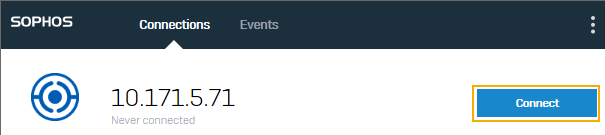
Click Connect to sign in.
-
Enter your VPN portal username and password
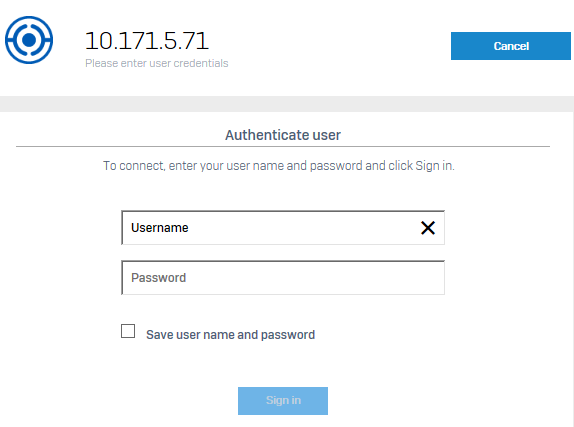
- Enter the verification code if required.
- Click Sign in.
- This establishes the remote access SSL VPN connection. Future connections are established automatically.
Should you have any other questions, please contact our Service Desk by emailing support@vgrid.nz or phoning 0800 425 383 during business hours.
Comments
0 comments
Please sign in to leave a comment.